Gaming involves thousands of small movements, from pressing keyboard keys and clicking a mouse to using controller buttons and touchscreen controls. During long sessions, repeatedly performing the same movements without sufficient breaks can leave your hands and wrists feeling tired or uncomfortable.
Keeping your hands and wrists comfortable while gaming involves more than buying an ergonomic keyboard or an expensive controller. Your grip, wrist position, equipment placement, input settings and gaming routine all matter.
This guide explains how to improve hand and wrist comfort during gaming, adjust your mouse and keyboard, hold a controller comfortably, reduce unnecessary repetitive movements and recognize signs that may require professional attention.
Why Gaming Can Make Your Hands and Wrists Uncomfortable
Different games require different hand movements. PC gaming often involves repeated mouse clicks and keyboard inputs, while console games may require continuous button presses and controller movements.
Several factors can contribute to discomfort:
- Repeatedly pressing the same keys or buttons.
- Holding a mouse or controller too tightly.
- Keeping the wrist bent for extended periods.
- Using input devices that do not fit your hands comfortably.
- Resting your wrists against hard desk edges.
- Playing for long periods without changing activities.
- Using controls that require excessive finger movement or force.
The US Occupational Safety and Health Administration (OSHA) explains that repetitive computer tasks, awkward wrist positions and insufficient recovery periods can contribute to fatigue and musculoskeletal problems. Similar considerations are relevant when arranging a gaming workstation.
Recognize Early Signs of Hand and Wrist Discomfort
Pay attention to how your hands feel during and after gaming. Early discomfort can be a signal that your equipment, grip or playing routine needs adjustment.
Common symptoms to notice
- Hand or wrist fatigue.
- Mild aching after repetitive gameplay.
- Stiffness in the fingers or wrists.
- Discomfort when gripping a controller.
- Forearm tiredness.
- Temporary discomfort after prolonged mouse use.
Recognize more concerning symptoms
Some symptoms should not be ignored, particularly when they keep returning or interfere with normal activities.
Pay attention to:
- Tingling or pins and needles in your fingers.
- Numbness in part of your hand.
- Burning sensations.
- Reduced grip strength.
- Persistent pain or swelling.
- Difficulty moving your fingers or wrist normally.
These symptoms can have different causes. They should not automatically be attributed to gaming or self-diagnosed as a particular condition.
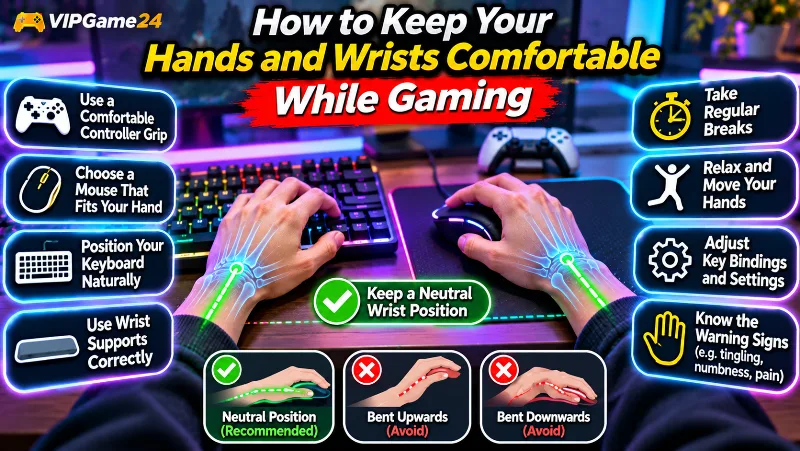
Keep Your Wrist in a Comfortable, Neutral Position
Wrist position is one of the most important considerations when using a keyboard, mouse or controller.
A neutral wrist position generally means keeping the hand aligned with the forearm rather than bending the wrist sharply upwards, downwards or sideways.
Avoid bending your wrist upwards
If your keyboard is too high, you may repeatedly bend your wrists upwards while typing or playing.
Adjust your chair, desk or keyboard position so that your forearms and hands can remain comfortably aligned.
Avoid bending your wrist sideways
Keep your keyboard and mouse positioned naturally in front of you. Reaching towards a device placed too far to one side can encourage awkward wrist and arm movements.
Relax your hands when possible
You do not need to maintain a tight grip on your mouse or controller throughout every gaming session.
Use only the pressure needed to control the device. Relax your fingers during loading screens, menus and other natural pauses.
Do not press your wrist against hard edges
A sharp desk edge can create unwanted pressure against your forearms or wrists.
Arrange your mouse pad and keyboard so that your arms have comfortable support without being forced against hard surfaces.
OSHA’s computer workstation guidance explains the importance of neutral wrist positions and avoiding awkward postures.
Adjust Your Gaming Mouse for Better Hand Comfort
Mouse-intensive games can involve frequent clicking, scrolling and small hand movements. Adjusting the mouse and its settings can make the controls easier to use.
Choose a mouse that fits your hand
A mouse should feel comfortable rather than forcing your fingers into an unnatural position.
When choosing one, consider:
- Overall size and shape.
- Weight and movement.
- Button placement.
- Grip comfort.
- Scroll-wheel position.
- Whether you can reach important buttons naturally.
A mouse with many extra buttons is not automatically better. Choose a design that suits your hand and the games you play.
Keep the mouse close to the keyboard
Place the mouse beside the keyboard so that you do not need to stretch your arm to reach it.
Keep the mouse surface large enough for comfortable movement without repeatedly hitting the edge of your desk.
Find a comfortable mouse sensitivity
Mouse sensitivity determines how much cursor or camera movement occurs in response to physical mouse movement.
If your settings make precise control difficult, you may repeatedly make small corrective movements or grip the mouse more tightly.
Experiment with sensitivity settings until you find a level that feels comfortable and provides sufficient control for your games.
Reduce unnecessary clicking
Where a game provides suitable options, consider:
- Changing button assignments.
- Using available accessibility settings.
- Adjusting toggle and hold controls.
- Moving frequently used actions to convenient buttons.
- Reducing unnecessary menu interactions.
Use only control changes that remain permitted by the game’s rules, particularly in competitive multiplayer games.
Use Your Gaming Keyboard More Comfortably
PC gaming can involve repeated keyboard actions, especially in games that use many movement keys, shortcuts and ability controls.
Position the keyboard naturally
Place your keyboard directly in front of your body.
Adjust its position so that:
- Your shoulders remain relaxed.
- Your elbows can stay reasonably close to your body.
- Your forearms are comfortably supported.
- Your wrists are not bent sharply.
- You can reach frequently used keys without stretching.
Avoid pressing keys with excessive force
Use only the pressure required to activate the keyboard switches. Repeatedly pressing keys harder than necessary may make your fingers work harder without improving gameplay.
Review your key bindings
Some games assign important actions to keys that may feel awkward to reach.
Review the available control settings and consider moving frequently used actions to more convenient positions.
For example, you might change an ability key or movement-related action if the alternative is more comfortable and permitted by the game.
Do not use keyboard shortcuts that create uncomfortable hand positions
Shortcuts should make gameplay more convenient, not force your fingers to stretch awkwardly.
Experiment with alternative key bindings and select arrangements that feel natural.
Hold Your Gaming Controller Without Excessive Grip
Console and controller-based gaming uses a different combination of movements from traditional mouse and keyboard gaming.
Repeated thumb movement, trigger use and tight gripping may make your hands feel tired during longer sessions.
Choose a controller that fits your hands
Controller size, shape and button layout can influence comfort.
Consider:
- Whether the controller fits comfortably in both hands.
- Whether your thumbs reach the sticks and buttons naturally.
- Whether the triggers require excessive finger movement.
- Whether the controller feels too heavy.
- Whether the grips are comfortable.
A controller that suits one player may not feel equally comfortable to someone with different hand proportions.
Avoid gripping the controller too tightly
Competitive gameplay may make you tighten your grip without realizing it.
Try to hold the controller securely without unnecessary force. Relax your fingers during pauses and between matches.
Keep your controller at a comfortable height
Hold the controller where your shoulders and forearms can remain relaxed.
Avoid holding it unusually high or stretching your arms forward for extended periods.
Consider accessible control options
Some platforms provide button remapping, adaptive controllers or alternative input options.
These features can help users choose controls that better match their needs and preferences.
Check the accessibility settings available on your console and within individual games.
Improve Your Wrist Rest and Mouse Pad Arrangement
Wrist rests and mouse pads can improve the organization of a gaming desk, but their positioning matters.
Understand how a wrist rest should be used
A wrist or palm support can help some users maintain a more comfortable hand position.
OSHA advises that, when using a support, the heel or palm of the hand should contact the pad during resting periods. Your hands should move freely and remain elevated above the support while actively typing.
Choose a comfortable support surface
Look for a soft, rounded surface that does not create hard pressure against your wrists.
Avoid supports that force your hands into an awkward angle or prevent natural movement.
Check mouse pad size
A mouse pad should provide enough space for your preferred mouse movement.
A very small surface may repeatedly force you to lift and reposition your mouse, creating additional unnecessary movements.
Avoid resting your wrists on hard edges
Do not continuously press your wrist or forearm against the front edge of your desk.
If your desk has a sharp edge, consider repositioning your equipment or using a suitable soft-edged surface.
Take Short Breaks to Give Your Hands Time to Recover
Even a well-arranged gaming setup cannot eliminate repetitive movements. Your hands and fingers still perform repeated actions when you play.
Breaking up long periods of continuous activity gives your muscles and tendons time away from repeated input.
Use natural breaks between matches
When a multiplayer round finishes, take a moment before starting the next match.
Relax your hands, release your grip and move away from the keyboard or controller.
Build short pauses into longer sessions
OSHA recommends frequent short pauses for repetitive computer work and suggests a five-minute break from computer tasks every hour as a general workstation practice.
You can use this as a practical starting point during extended gaming sessions rather than treating it as a strict medical rule.
Change activities during breaks
During a break, consider:
- Standing up and walking around.
- Relaxing your hands away from input devices.
- Gently opening and closing your fingers.
- Changing your sitting position.
- Getting water or moving to another activity.
Do not force movements or continue an activity that makes your hands uncomfortable.
Try Gentle Hand and Finger Movements During Breaks
Gentle movement may help you avoid remaining in the same hand position throughout a gaming session.
These are simple comfort activities, not treatments for an injury.
Relax your fingers
Release your mouse or controller and allow your fingers to relax naturally.
Gently open and close your hands within a comfortable range without squeezing tightly.
Move your wrists gently
Slowly move your wrists within a comfortable range. Avoid forcing your hands into extreme stretching positions.
Relax your forearms
Lower your arms, relax your shoulders and allow your hands to rest naturally.
Stop if movement causes pain
Gentle movement should not be painful. If an activity increases discomfort, stop rather than trying to stretch through the pain.
If you experience ongoing stiffness or pain, ask a qualified healthcare professional whether specific exercises are appropriate for you.
Reduce Repetitive Finger Movements Where Possible
Some gaming styles require repeated actions using the same fingers. This can be especially noticeable in competitive games, rhythm games and mouse-intensive titles.
Review repeated actions
Identify the buttons or keys that require the most frequent input.
Consider whether the game provides alternative controls or settings that make those actions easier to perform.
Use alternative inputs when suitable
Some players may prefer a controller for certain games, while others find a mouse and keyboard more comfortable.
There is no single input device that is best for every player. Choose the arrangement that feels comfortable and suits the game.
Alternate tasks where practical
If you spend much of your day using a mouse for work or study, consider avoiding another long uninterrupted mouse-heavy activity immediately afterwards.
Use time away from the computer for activities that involve different movements.
Do not force a gaming session when your hands are tired
When your fingers feel fatigued, continuing to play may make the session less comfortable.
Take a break or stop playing when necessary. Your gaming performance is not worth ignoring persistent discomfort.
Understand When Wrist Supports or Ergonomic Accessories May Help
Accessories can support a comfortable workstation, but purchasing more equipment is not always the best solution.
Wrist and palm rests
A suitable wrist or palm rest may help some keyboard and mouse users maintain a more neutral position.
However, using one incorrectly can restrict movement or create additional pressure. Adjust your keyboard and desk before assuming that a wrist rest will solve every problem.
Ergonomic keyboards
Some ergonomic keyboards use split layouts, alternative shapes or different key arrangements.
They may suit certain users, but comfort depends on individual hand size, typing habits and gaming requirements.
Vertical and alternative mice
Alternative mouse designs, including vertical mice and trackballs, may provide different ways to control a computer.
They are not automatically more comfortable for every person. Try a suitable design before making an expensive purchase when possible.
Controller accessories
Controller grips, button extensions and other accessories may change how a device feels in your hands.
Check whether an accessory fits your controller and whether it makes reaching buttons easier rather than more difficult.
What to Do When Your Hands or Wrists Become Uncomfortable
If your hands or wrists become uncomfortable during gaming, do not simply ignore the sensation and continue playing.
Stop or reduce the activity causing discomfort
Put down the controller or stop using the mouse for a while.
Consider which actions may have contributed to the discomfort, such as repeated clicking, tight gripping or an awkward wrist position.
Allow your hands to rest
Take a break from the activity and avoid repeatedly testing the painful movement.
The NHS recommends resting a painful wrist when possible and stopping or reducing activities that make the pain worse.
Avoid forceful gripping and unnecessary strain
Do not lift heavy objects or grip equipment tightly when your wrist is painful.
Return to gaming only when ordinary hand movements feel comfortable, and avoid immediately restarting the activity that caused the problem.
Do not self-diagnose the cause
Hand and wrist discomfort can have several causes. Gaming may contribute to repetitive movement, but it is not necessarily the only explanation.
Persistent symptoms should be assessed by a qualified healthcare professional.
When Should You Seek Professional Advice?
Occasional tiredness after using a mouse or controller is different from persistent pain, numbness or loss of function.
Consider seeking professional medical advice if:
- Wrist pain prevents you from performing normal activities.
- Pain becomes worse or repeatedly returns.
- Discomfort does not improve after appropriate self-care.
- You experience tingling or loss of sensation.
- Your grip becomes weaker.
- Your wrist becomes warm, swollen or stiff.
The NHS advises medical assessment when wrist pain is worsening, recurring, interfering with normal activities or associated with tingling or loss of sensation.
Recognize situations that need urgent attention
Seek urgent medical assessment if you experience:
- Severe wrist pain.
- Inability to move the wrist or hold objects.
- Loss of feeling in part or all of your hand.
- A wrist that has changed shape or colour.
- Significant pain following an injury accompanied by swelling or other concerning symptoms.
Do not assume severe symptoms are simply the result of playing too many games. Seek appropriate local medical care.
This guide provides general information and is not a substitute for diagnosis or treatment from a qualified healthcare professional.
Build a More Comfortable Gaming Routine
Comfortable equipment and sensible gaming habits work together. A good mouse position cannot compensate for hours of repetitive movement without recovery time.
Try this simple routine:
| When | What to do |
|---|---|
| Before gaming | Check keyboard, mouse and controller positioning. |
| During gameplay | Avoid excessive gripping and maintain comfortable wrist positions. |
| Between matches | Relax your fingers and release the controller. |
| During longer sessions | Take short pauses and change activities. |
| After gaming | Notice whether any discomfort occurred and adjust the next session. |
Hand and Wrist Comfort Checklist for Gamers
Review this checklist before or during a gaming session:
- Does my mouse or controller fit comfortably?
- Can I operate the controls without excessive force?
- Are my wrists reasonably straight?
- Are my keyboard and mouse within easy reach?
- Am I avoiding pressure against hard desk edges?
- Is my mouse sensitivity comfortable?
- Are my frequently used keys easy to reach?
- Am I relaxing my grip between matches?
- Am I taking short breaks during longer sessions?
- Am I stopping when discomfort develops?
- Have I avoided ignoring persistent pain, tingling or numbness?
Common Gaming Hand and Wrist Mistakes to Avoid
Holding the controller too tightly
Excessive gripping can make your fingers and hands work harder than necessary. Use a secure but relaxed grip whenever the game allows it.
Keeping the wrist bent while using a mouse
Adjust your desk and mouse placement so that your hand remains more naturally aligned with your forearm.
Using a mouse that is too large or too small
An unsuitable mouse shape can make reaching buttons and controlling movement uncomfortable. Choose a device that fits your hands.
Pressing keys harder than necessary
Use only enough force to activate the keyboard. Excessive pressure is not required for normal key operation.
Relying on wrist rests to fix poor positioning
A wrist rest cannot correct every workstation problem. Adjust your keyboard height, desk and chair so that your wrists can remain comfortably aligned.
Continuing through pain
Do not treat pain as something you must tolerate to finish a match. Stop or reduce the activity and seek advice when symptoms persist.
Frequently Asked Questions
How can I keep my hands comfortable while gaming?
Use a comfortable grip, keep your wrists reasonably straight, position your input devices within easy reach and take regular breaks. Avoid pressing keys or buttons harder than necessary.
Why do my wrists hurt after gaming?
Possible contributing factors include repetitive movements, awkward wrist positions, excessive gripping and long periods without breaks. Wrist pain can have other causes too, so persistent symptoms should be assessed professionally.
Is a wrist rest good for gaming?
A properly positioned wrist or palm rest may improve comfort for some keyboard and mouse users. However, your hands should move freely while typing or actively using the mouse. A wrist rest should not force your wrist into an uncomfortable angle.
Should I use a vertical mouse for gaming?
A vertical mouse is an alternative input design that some people find comfortable. However, it is not automatically better for everyone. Fit, button placement and personal preference should guide your choice.
Can controller grips improve hand comfort?
Some controller grips may make a device easier to hold, depending on its design and your hand size. Choose accessories that improve comfort without making buttons difficult to reach.
How often should gamers take hand breaks?
Frequent short pauses are useful during repetitive computer activities. OSHA suggests a five-minute break from computer tasks every hour as general workstation guidance. You can also use natural breaks between gaming rounds.
Should I stretch my wrists before gaming?
Gentle, comfortable hand and wrist movement can help you avoid remaining in one position. Do not force stretches or continue movements that cause pain. Ask a healthcare professional about specific exercises if you already have symptoms.
What should I do if my fingers become numb while gaming?
Stop the activity and seek appropriate medical advice, especially if numbness persists or returns. Do not assume that numbness is normal gaming fatigue.
Can gaming cause carpal tunnel syndrome?
Hand and wrist symptoms can have several causes, and repetitive computer activity may be one contributing factor to discomfort. Gaming alone does not establish a diagnosis of carpal tunnel syndrome. A healthcare professional can assess persistent tingling, numbness or weakness.
Do expensive gaming keyboards prevent wrist problems?
No keyboard can guarantee protection from wrist problems. Comfortable positioning, suitable key settings, neutral wrist alignment and regular breaks matter more than price alone.
Final Thoughts
Keeping your hands and wrists comfortable while gaming starts with small practical changes. Choose input devices that fit your hands, relax your grip, avoid awkward wrist positions and take breaks during extended sessions.
Adjust your keyboard and mouse placement, review repetitive controls and use wrist supports only when they genuinely improve comfort. Remember that even a well-arranged setup cannot eliminate every effect of repetitive movement.
Most importantly, do not ignore persistent pain, tingling, numbness or weakness. Stop activities that make symptoms worse and seek professional advice when necessary.
Enjoy your favourite games while giving your hands and wrists enough time to rest and recover.