
Gaming can keep you focused on a screen for long periods, whether you are playing competitive matches, exploring an open-world game or completing a lengthy campaign. After an extended session, some players notice dry eyes, blurred vision, headaches or general eye discomfort.
These symptoms can be associated with digital eye strain, sometimes called computer vision syndrome. Spending long periods focusing on nearby screens, blinking less frequently and using displays with glare or unsuitable settings can contribute to discomfort.
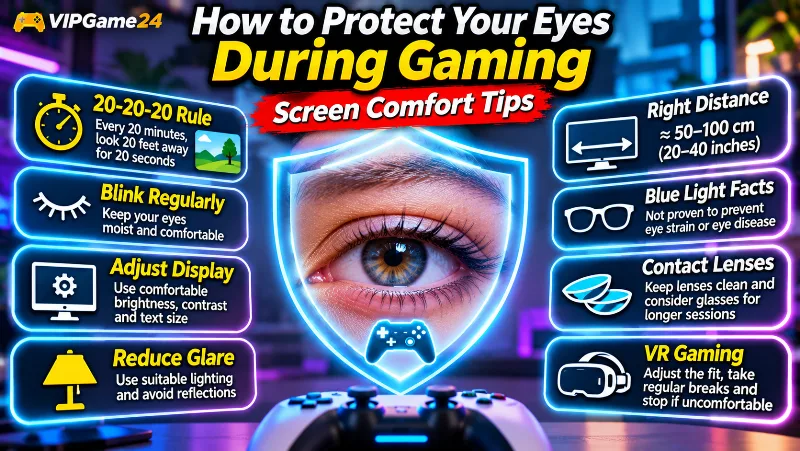
Learning how to protect your eyes during gaming starts with simple habits: take regular screen breaks, blink normally, adjust display brightness, reduce glare and maintain a comfortable viewing distance.
This guide explains practical ways to make gaming more comfortable for your eyes, including PC monitor adjustments, mobile gaming tips, lighting, contact lenses, virtual reality and when to seek professional eye care.
What Is Digital Eye Strain?
Digital eye strain refers to temporary eye and vision discomfort associated with extended use of computers, smartphones, tablets and other digital displays.
It can affect gamers who spend long periods concentrating on gameplay, small interface elements, subtitles or fast-moving visual information.
Common symptoms of digital eye strain
Symptoms can vary from person to person and may include:
- Dry or uncomfortable eyes.
- Blurred vision after extended screen use.
- Watery or irritated eyes.
- Headaches.
- Difficulty focusing after looking at a screen for a long time.
- Temporary sensitivity or discomfort when viewing bright displays.
Not everyone experiences the same symptoms. Existing vision problems, contact lens use, screen position and viewing conditions can also influence discomfort.
Why gaming can contribute to eye discomfort
Gaming often requires sustained visual attention. Players may spend long periods following characters, reading small text, tracking opponents or concentrating on detailed environments.
During screen use, people tend to blink less frequently. Reduced blinking can make the surface of the eyes drier and contribute to discomfort.
The American Academy of Ophthalmology explains that digital screen use can cause temporary eye discomfort, although current evidence does not establish that ordinary computer-screen light permanently damages the retina. Read its digital devices and eye health guide.
Follow the 20-20-20 Rule During Gaming
One practical way to give your eyes regular breaks is the 20-20-20 rule.
The rule is simple:
- Every 20 minutes, stop looking at your screen.
- Look at an object approximately 20 feet away.
- Continue looking at that distant object for at least 20 seconds.
This short break gives your eyes an opportunity to change focus from a nearby screen to something farther away.
How to use the rule while gaming
You can incorporate the rule into your normal gaming routine:
- Start playing your game.
- Set a reminder for approximately 20 minutes.
- When the reminder appears, look away from the screen.
- Focus on a distant object for 20 seconds.
- Return to the game when ready.
During competitive matches, use a natural pause between rounds when possible. Avoid ignoring breaks simply because you want to start another match.
Make distant viewing comfortable
Look through a window at a distant object or focus on something across the room. Avoid replacing one nearby screen with another phone or tablet.
The 20-20-20 rule is a commonly recommended practical habit for managing digital eye strain. It is not a guarantee that eye discomfort will never occur.
See the American Optometric Association’s 20-20-20 guidance for more information.
Remember to Blink While Playing Games
Blinking helps spread moisture across the surface of your eyes. When concentrating on a gaming screen, you may blink less often than usual.
Practice conscious blinking
Make a habit of blinking normally during gameplay. You do not need to forcefully squeeze your eyes shut. Simply remember to blink regularly instead of staring continuously at the screen.
Use natural breaks to rest your eyes
When a match ends or a loading screen appears, look away and blink a few times. You can also close your eyes briefly while taking a normal break.
Pay attention to dry indoor environments
Air conditioning, heating and fans directed towards your face may make eye dryness more noticeable for some people.
Consider changing the direction of airflow and maintaining a comfortable indoor environment.
Ask about lubricating eye drops when necessary
Artificial tears may help relieve dryness for some people. However, choose an appropriate product based on your circumstances, particularly if you wear contact lenses or have an existing eye condition.
Ask an eye-care professional or pharmacist when you are unsure which product is suitable.
Adjust Your Gaming Monitor for Comfortable Viewing
Monitor position can influence how comfortably you view a screen. A display that is too close, too high or positioned at an awkward angle may encourage uncomfortable viewing habits.
Maintain a comfortable viewing distance
For desktop monitors, a distance of approximately 20 to 40 inches (50 to 100 centimetres) is a useful general workstation reference.
The American Academy of Ophthalmology also suggests sitting around arm’s length, approximately 25 inches, from a computer screen.
These are starting points rather than fixed requirements for every screen. Your monitor size, resolution and text readability also matter.
Position the monitor at a comfortable height
As a general workstation recommendation:
- Place the top of the screen at or slightly below eye level.
- Position the display directly in front of you.
- Allow your eyes to look slightly downward towards the screen.
- Avoid repeatedly tilting your head to see important information.
Make sure the complete display remains comfortably visible without leaning forward.
Adjust text size and interface scaling
Small text can encourage you to move closer to the monitor or lean forward.
Consider increasing:
- Operating system text size.
- Game interface scaling.
- Subtitle size.
- Browser zoom when using web-based games.
- Menu and notification text.
Choose settings that allow you to read important information without moving unnecessarily close to the screen.
Clean your monitor regularly
Fingerprints, dust and smudges can affect display clarity and create distracting marks.
Use a cleaning method recommended by your monitor manufacturer. Avoid spraying liquids directly onto the display.
For additional workstation guidance, see OSHA’s monitor positioning recommendations.
Adjust Screen Brightness and Contrast
A screen that is much brighter than its surroundings may feel uncomfortable, especially when playing in a dim room.
Match brightness to your surroundings
Adjust your display brightness so the screen does not appear excessively bright compared with the surrounding environment.
For example, a brightness level that works comfortably during the daytime may feel too strong at night.
Adjust contrast for readability
Choose a contrast level that makes text, menus and important gameplay details easy to distinguish.
Avoid settings that make shadows too dark or bright areas difficult to view.
Use night mode when appropriate
Many computers, phones and gaming devices provide night mode or warm-colour display settings.
These features can make evening screen use feel more comfortable for some people and may help reduce exposure to bright blue-rich light before bedtime.
However, night mode is not a proven method for preventing retinal damage or curing digital eye strain.
Avoid extreme display settings
Maximum brightness, exaggerated contrast and highly saturated colours are not necessary for every game.
Choose settings that provide clear gameplay without making the display uncomfortable to look at.
Reduce Glare and Improve Gaming Room Lighting
Screen reflections can make it difficult to see game details and may encourage you to change your position to avoid glare.
Position your screen away from direct reflections
Try to avoid placing your monitor directly in front of a bright window or another strong light source.
For a desktop workstation, positioning the monitor perpendicular to windows can help reduce reflections.
Use suitable room lighting
Choose comfortable ambient lighting rather than relying entirely on a bright monitor in a dark room.
Make sure the light is not shining directly into your eyes or reflecting strongly from the display.
Use a matte screen filter when necessary
A matte anti-glare filter may help reduce reflections on certain displays.
Before purchasing one, check whether your monitor already has an anti-glare coating and whether the filter is compatible with the screen.
Adjust decorative RGB lighting
RGB strips and gaming-room lighting can improve the appearance of a setup, but bright lights positioned directly in your field of view may be distracting.
Keep decorative lighting at a comfortable level and avoid placing exposed light sources where they shine directly into your eyes.
Reduce Eye Discomfort While Gaming on Mobile Devices
Mobile gaming presents different challenges because phones are generally viewed from a shorter distance than desktop monitors.
Avoid holding your phone too close
Keep your phone at a comfortable viewing distance instead of bringing it very close to your face.
If game controls or text are too small, look for available interface settings rather than moving the device closer.
Increase text and interface size
Use available accessibility and display settings to make text easier to read.
Check whether the game supports subtitle resizing, interface scaling or other visual options.
Avoid playing in extremely dark surroundings
Use suitable ambient lighting and adjust screen brightness according to your surroundings.
Do not assume that the brightest setting is always the clearest or most comfortable.
Take breaks away from the phone
During breaks, put the device down and look at something in the distance. Standing up and changing your activity also helps interrupt prolonged screen use.
Understand Blue Light and Gaming Glasses
Blue light is a part of the visible light spectrum. It comes from natural sunlight as well as artificial lighting and digital displays.
There are many products marketed as blue-light-blocking glasses for gamers. Before purchasing them, it is important to understand what current evidence says.
Do gaming screens permanently damage your eyes through blue light?
The American Academy of Ophthalmology’s current guidance reports no meaningful link between blue light from ordinary digital screens and damage to the human retina or age-related macular degeneration.
Temporary discomfort during extended screen use is more closely associated with factors such as reduced blinking, prolonged near focus and viewing conditions.
Do blue-light-blocking glasses prevent eye strain?
Special blue-light glasses are not considered necessary for ordinary computer use by the American Academy of Ophthalmology.
Current evidence has not established that these glasses reliably prevent digital eye strain or eye disease.
Do not spend money on expensive gaming glasses expecting them to protect your eyes from screen-related damage.
What about night mode and sleep?
Blue-rich light in the evening can influence the body’s natural sleep-wake cycle. Using a warmer display setting and reducing screen use before bedtime may be helpful when preparing for sleep.
However, night mode does not replace a suitable bedtime routine.
Read the American Academy of Ophthalmology’s latest digital eye health guidance for more information about blue light and screen discomfort.
Take Care of Your Eyes When Using Contact Lenses
People who wear contact lenses may experience additional dryness or irritation during long screen sessions.
Consider wearing glasses during longer gaming sessions
If contact lenses make your eyes feel dry during extended screen use, consider switching to your glasses when appropriate.
The American Academy of Ophthalmology recommends that contact lens users give their eyes a break by wearing glasses instead when using digital devices for long periods.
Follow proper contact lens hygiene
Always follow the cleaning, storage and replacement instructions provided for your contact lenses.
Do not sleep in contact lenses unless specifically instructed by your eye-care professional. Do not reuse disposable lenses beyond their intended replacement schedule.
Do not ignore persistent irritation
If your eyes become repeatedly uncomfortable while wearing contact lenses, remove them according to your lens-care instructions and seek professional advice.
Read the AAO computer-use and contact lens advice.
Be Careful When Gaming With VR Headsets
Virtual reality gaming creates a different viewing experience from looking at a regular monitor. A headset displays images close to the eyes while creating a simulated sense of depth.
Adjust headset fit and image settings
Follow the manufacturer’s instructions for headset positioning and optical adjustments.
Make sure the device fits properly and the image appears clear. An incorrectly adjusted headset may make the experience uncomfortable.
Take breaks between VR sessions
VR games can involve continuous head movement and simulated motion. Stop regularly and allow yourself time away from the headset.
Stop if you experience discomfort
If VR gaming causes headaches, dizziness, blurred vision or significant discomfort, remove the headset and take a break.
If these symptoms repeatedly occur, consult an eye-care professional or appropriate healthcare professional before continuing.
Build an Eye-Friendly Gaming Routine
Good screen habits are easier to maintain when you incorporate them into your normal gaming routine.
Before starting a gaming session
- Clean your monitor or mobile screen.
- Adjust brightness and contrast.
- Check for distracting reflections.
- Position your screen comfortably.
- Make sure important game text is readable.
- Set a reminder for regular visual breaks.
During gaming
- Blink normally instead of staring continuously.
- Follow the 20-20-20 routine.
- Look away during loading screens and between matches.
- Adjust settings if text or interface elements are difficult to read.
- Take a longer break when your eyes feel uncomfortable.
After gaming
- Spend some time away from digital screens.
- Allow your eyes to rest naturally.
- Follow your usual sleep routine.
- Notice whether particular display conditions cause repeated discomfort.
When Should You See an Eye-Care Professional?
Occasional discomfort after prolonged screen use may improve when you change your viewing habits. However, persistent symptoms should not automatically be blamed on gaming.
Seek professional advice if you experience:
- Repeated or persistent blurred vision.
- Frequent eye pain or discomfort.
- Ongoing redness or watery eyes.
- Repeated headaches associated with viewing screens.
- Persistent sensitivity to light.
- Symptoms that continue despite adjusting your screen habits.
An eye-care professional can assess possible causes such as dry eye, an outdated glasses prescription or an underlying vision problem.
Sudden vision changes, significant eye pain or an acute loss of vision require urgent medical attention. Do not wait for ordinary gaming breaks to resolve these symptoms.
This article provides general information and is not a substitute for an eye examination or individualized medical advice.
Common Eye-Care Mistakes Gamers Should Avoid
Playing continuously without looking away
Concentrating on gameplay for long periods can reduce blinking and increase visual fatigue. Make breaks part of your normal routine.
Using maximum brightness in a dark room
Excessive brightness compared with the surrounding lighting can make screen viewing uncomfortable. Adjust brightness according to the room.
Assuming blue-light glasses solve every problem
Blue-light-blocking glasses are not a proven solution for digital eye strain. Focus first on screen distance, regular breaks, blinking and lighting.
Ignoring small interface text
If subtitles or menus are difficult to read, increase their size where possible rather than leaning closer to the display.
Ignoring repeated eye discomfort
Persistent symptoms may have causes unrelated to gaming. Do not continue experiencing discomfort without seeking appropriate advice.
Replacing breaks with another screen
Switching from a gaming monitor to a phone during a break does not provide the same opportunity to look away from near screens. Use breaks to focus on distant objects or step away from digital devices.
Eye Comfort Checklist for Gamers
Before or during a gaming session, use this checklist:
- Is my display at a comfortable distance?
- Is the screen positioned at a suitable height?
- Is the brightness appropriate for the room?
- Are there reflections or distracting glare?
- Can I read menus and subtitles comfortably?
- Am I blinking normally?
- Have I taken a 20-20-20 break?
- Am I avoiding unnecessarily long uninterrupted sessions?
- Are my contact lenses comfortable and properly maintained?
- Am I stopping when my eyes feel uncomfortable?
Frequently Asked Questions
Does playing video games damage your eyes permanently?
Current guidance from the American Academy of Ophthalmology does not establish that ordinary digital screen use permanently damages the retina. However, extended screen use can cause temporary symptoms such as dryness, blurred vision and eye discomfort.
What is the 20-20-20 rule for gamers?
Every 20 minutes, look at something approximately 20 feet away for at least 20 seconds. It is a simple reminder to take regular breaks from close screen viewing.
How far should I sit from my gaming monitor?
Approximately 20 to 40 inches (50 to 100 centimetres) is a general workstation reference. The American Academy of Ophthalmology suggests about 25 inches or arm’s length. Adjust the position according to screen size and readability.
Is dark mode better for your eyes while gaming?
Dark mode may feel more comfortable for some players, especially in darker surroundings. However, there is no single display mode that is best for everyone. Adjust brightness, contrast and surrounding lighting according to your comfort.
Do blue-light glasses help gamers?
The American Academy of Ophthalmology does not recommend special blue-light-blocking glasses for routine computer use because evidence has not established that they prevent eye disease or reliably reduce digital eye strain.
Why do my eyes feel dry after gaming?
People often blink less when concentrating on screens. This can reduce the spread of moisture across the eye surface and contribute to dryness or irritation.
Can I use artificial tears after gaming?
Artificial tears may help some people with dry eyes. Choose a product suitable for your circumstances, especially if you wear contact lenses, and ask an eye-care professional or pharmacist when unsure.
Does gaming in a dark room cause eye damage?
There is no established evidence that ordinary screen viewing in a dark room permanently damages the eyes. However, a very bright display in a dark environment may feel uncomfortable. Suitable room lighting and screen brightness can improve viewing comfort.
Should I stop gaming if I experience blurred vision?
Stop the session and allow your eyes to rest. If blurred vision persists, happens repeatedly or occurs with pain or significant light sensitivity, seek professional eye-care advice. Sudden vision changes require urgent medical assessment.
How often should gamers take eye breaks?
The 20-20-20 rule is one practical starting point. You can also take longer breaks between matches or gaming sessions and spend time away from screens.
Final Thoughts
Protecting your eyes during gaming is mainly about building comfortable screen habits rather than purchasing expensive accessories. Adjust your display, reduce glare, use readable text, blink normally and take regular breaks.
The 20-20-20 rule provides a simple reminder to look away from nearby screens. Also, make time for longer breaks and reduce uninterrupted screen use when your eyes feel uncomfortable.
Remember that ordinary screen use can cause temporary eye discomfort, but it should not automatically be treated as permanent eye damage. If you experience persistent blurred vision, redness, pain or light sensitivity, arrange an appropriate eye examination.
Enjoy your favourite games while making screen comfort and regular eye care part of your gaming routine.