Gaming can involve long periods of sitting, using a keyboard and mouse, holding a controller or looking at a screen. A poorly arranged gaming area may encourage uncomfortable positions, unnecessary reaching and repeated strain during extended sessions.
An ergonomic gaming setup focuses on arranging your chair, desk, monitor and gaming equipment around your body. You do not need expensive gaming furniture to create a more comfortable environment. Small adjustments to screen height, seating position, keyboard placement and lighting can make a practical difference.
This guide explains how to create a comfortable PC gaming workstation, adjust your chair and monitor, position your keyboard and mouse, improve laptop and console setups and make sensible improvements without spending too much money.
What Is an Ergonomic Gaming Setup?
Gaming ergonomics is about arranging your gaming equipment and environment so that you can use them comfortably without frequently adopting awkward positions.
A suitable setup considers:
- Chair height and back support.
- Monitor position and viewing distance.
- Desk height and available legroom.
- Keyboard and mouse placement.
- Controller position and grip.
- Room lighting and screen glare.
- Space to change position comfortably.
There is no single perfect workstation arrangement that suits everyone. Your height, body proportions, equipment and gaming habits all influence how your setup should be adjusted.
The Occupational Safety and Health Administration (OSHA) recommends arranging computer equipment to support comfortable body positions and reduce awkward postures.
Why Gaming Ergonomics Matters
A gaming setup that forces you to lean forward, raise your shoulders or bend your wrists can become uncomfortable, particularly when you maintain that position for extended periods.
Reduce unnecessary reaching
If your keyboard, mouse or controller is positioned too far away, you may repeatedly stretch your arms or move your shoulders into uncomfortable positions.
Keeping frequently used equipment within easy reach makes your gaming space easier to use.
Improve your sitting position
A suitable chair and desk arrangement can help you maintain a supported position without constantly leaning forward to see the screen.
Make screen viewing more comfortable
A monitor positioned too high, too low or too far away may encourage you to adjust your head and body repeatedly.
Correct placement helps you view the screen without unnecessary neck movement.
Create a setup that fits your gaming routine
Different games require different equipment arrangements. A PC player using a keyboard and mouse has different positioning needs from someone playing with a controller.
Build your setup around the way you actually play rather than copying another person’s gaming room.
Choose a Suitable Gaming Chair
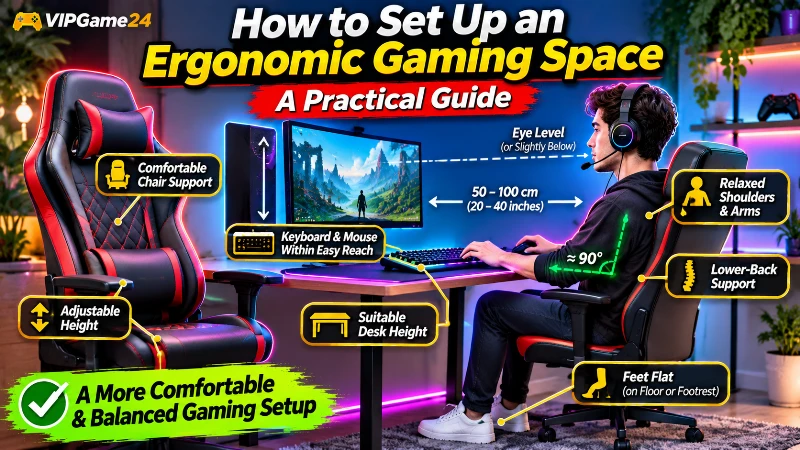
Your chair is one of the most important parts of a desktop gaming setup. It should support your back, allow your feet to rest comfortably and provide enough room for you to change position.
Look for adjustable height
Your chair should be adjustable enough to help you position yourself comfortably relative to the desk.
When seated:
- Keep your feet supported by the floor or a footrest.
- Avoid raising your shoulders to reach the keyboard.
- Keep your thighs comfortably supported.
- Allow enough space behind your knees.
Adjust the chair and desk together where possible. Changing chair height without considering keyboard position may create another uncomfortable position.
Choose suitable lower-back support
A chair with appropriate lower-back support can help you maintain a comfortable sitting position.
Look for a backrest that supports your lower back without forcing you into an uncomfortable curve.
If your existing chair lacks suitable support, an appropriately positioned cushion may help you adjust the fit.
Check the seat depth
A seat that is too deep may press against the area behind your knees. A seat that is too short may not support enough of your thighs.
UK Health and Safety Executive workstation guidance suggests leaving a gap of approximately 2 to 3 centimetres between the front of the seat and the back of the knees as a practical fitting reference.
Remember that chair dimensions and individual body proportions differ. Choose an arrangement that feels comfortable and allows you to move naturally.
Do not buy a chair only for its gaming appearance
A racing-style gaming chair may look attractive, but appearance alone does not determine whether it fits your body.
When comparing chairs, consider:
- Height adjustment.
- Backrest support.
- Seat depth and width.
- Armrest positioning.
- Material and ventilation.
- Stability and build quality.
- Whether the chair suits your desk height.
A suitable office chair can work just as well as an expensive gaming chair.
Position Your Gaming Monitor Correctly
Monitor placement is important because you repeatedly look at the display while gaming. A screen that is positioned too high or too far to one side may encourage awkward head and neck positions.
Keep the monitor directly in front of you
Position your primary monitor centrally rather than placing it far to the left or right.
Your head, neck and upper body should face the screen naturally. This is especially important when using multiple monitors.
Adjust the screen height
As a practical starting point, position the top of the monitor at or slightly below eye level.
This allows you to view the screen without repeatedly tilting your head backwards or bending your neck downwards.
OSHA recommends that the monitor’s top edge should be at or below eye level, with the central viewing area positioned below horizontal eye level.
Maintain a comfortable viewing distance
Place your screen far enough away that you can read the content without leaning forward.
OSHA identifies approximately 20 to 40 inches, or 50 to 100 centimetres, as a preferred general viewing-distance range for computer monitors. The appropriate distance can vary with screen size and text readability.
Adjust the monitor angle
Tilt the display to a comfortable viewing angle. You should not need to lean your head forward or backward to see the important parts of the screen.
For multiple-monitor setups, place the primary display directly in front of you and arrange secondary displays where you can view them without excessive head turning.
Use a monitor stand when necessary
If your screen is too low, a monitor stand or suitable riser may help raise it to a more comfortable position.
Before purchasing one, check the stand’s stability, size and weight capacity.
Set Up Your Gaming Desk at a Comfortable Height
Your desk should provide enough space for your computer equipment without forcing you to reach forward or bend your wrists awkwardly.
Choose a suitable desk height
The desk should allow your elbows and forearms to rest comfortably while using the keyboard and mouse.
As a practical arrangement:
- Keep your elbows reasonably close to your body.
- Allow your forearms to remain approximately parallel to the floor.
- Relax your shoulders rather than raising them.
- Keep your wrists reasonably straight.
- Ensure the desk does not restrict your legs.
OSHA’s workstation guidance recommends arranging the chair, work surface and input devices together to support neutral body positions.
Check the space underneath your desk
Your legs should have enough room to move and change position.
Avoid storing large objects under the desk if they prevent you from positioning your feet and legs comfortably.
Keep frequently used equipment close
Place the keyboard, mouse and other frequently used controls within your normal reach.
Move unnecessary equipment away from your primary working area. This reduces clutter and helps you arrange essential devices more conveniently.
Consider an adjustable desk
An adjustable desk can provide flexibility when you want to change between sitting and standing.
You do not need a motorized desk to make an ergonomic improvement. A suitable fixed desk can work well when the chair, screen and input devices are properly positioned.
Adjust Your Gaming Keyboard and Mouse
Keyboard and mouse positioning matters because PC gaming involves repeated hand and finger movements.
Position the keyboard in front of you
Place the keyboard directly in front of your body rather than far to one side.
Position it so your elbows can remain reasonably close to your torso and your shoulders stay relaxed.
Keep your wrists in a neutral position
Try to keep your wrists aligned with your forearms instead of bending them sharply upwards, downwards or sideways.
Avoid resting the wrists against hard desk edges while using the keyboard.
Position the mouse beside the keyboard
Keep the mouse close enough that you do not need to stretch your arm to use it.
Its surface should allow you to move comfortably without repeatedly reaching outside your normal working area.
Choose a mouse that fits your hand
Mouse size and shape influence comfort. A mouse that is too large or too small may feel difficult to use for extended periods.
Consider:
- Overall shape.
- Mouse size.
- Button placement.
- Weight.
- Grip style.
- Movement requirements of your games.
Do not assume that a mouse with the highest DPI specification is automatically the most comfortable or suitable choice.
Adjust mouse sensitivity
Choose a sensitivity that allows you to control movement without unnecessary arm or wrist adjustments.
Experiment with different settings and choose one that feels natural for your games.
Use wrist supports appropriately
Some players prefer keyboard or mouse wrist supports. These can be useful when they help maintain a comfortable hand position, but they should not force your wrist into a bent posture.
Make sure any support is appropriately positioned and does not create pressure against the wrist while you are actively using the input device.
Improve Your Laptop Gaming Setup
Laptops present a special challenge because the screen and keyboard are attached to the same device. Raising the screen to a suitable height can make the built-in keyboard uncomfortable to reach.
Use a laptop stand when needed
A suitable laptop stand can raise the screen so you do not need to look down at the display constantly.
Add an external keyboard and mouse
When using a raised laptop for longer gaming or computer sessions, a separate keyboard and mouse allow you to position your hands independently of the screen.
Arrange the external devices correctly
Place the external keyboard directly in front of you and keep the mouse beside it.
Adjust their position so your arms can remain relaxed and you do not need to reach excessively.
Keep laptop ventilation clear
Gaming laptops generate heat during demanding workloads. Use a stable, hard surface that does not block the cooling vents.
Check the laptop manufacturer’s instructions for its ventilation requirements.
Create a Comfortable Console Gaming Setup
Console gaming often involves sitting on a sofa or using a television rather than working at a desk. The same general principles of comfortable positioning still apply.
Position yourself facing the television
Try to sit directly in front of the screen instead of repeatedly turning your head to one side.
Choose a viewing position where you can see the display without leaning excessively forward or backward.
Support your back comfortably
Choose a sofa or chair that allows you to rest comfortably. Avoid remaining twisted or leaning forward throughout an entire gaming session.
Hold the controller naturally
Keep the controller at a comfortable distance and allow your shoulders to relax.
Avoid gripping the controller unnecessarily tightly. Find a position that allows your hands and arms to move naturally.
Adjust your TV and seating distance
Arrange your television and seating so the screen is easy to view without leaning forward to read text or see important details.
Consider both screen size and room layout when deciding where to sit.
Make room for movement
Keep enough space around your seating area so you can stand up and change position comfortably.
Improve Gaming Room Lighting
Lighting affects how comfortably you view your monitor and how easily you can see your keyboard and surrounding environment.
Avoid excessive screen glare
Position your monitor so that bright windows or light sources are not reflected directly into the display.
OSHA suggests positioning monitors perpendicular to windows as one way to manage glare.
Use balanced room lighting
Do not rely entirely on a very bright screen in an otherwise dark room when that makes viewing uncomfortable.
Use suitable ambient lighting and adjust your monitor brightness to match the surrounding environment.
Position desk lamps carefully
Place desk lights where they illuminate your keyboard, mouse and workspace without shining directly into your eyes or creating screen reflections.
Keep decorative lighting secondary
RGB strips and decorative lighting can make a gaming room look attractive, but they should not interfere with your ability to see the display comfortably.
Prioritize practical lighting before adding decorative effects.
Choose Gaming Accessories That Improve Comfort
Accessories can help organize your gaming area, but not every product is necessary.
Monitor arm
A monitor arm can make it easier to adjust screen height, distance and angle. Check that it supports your monitor’s size and weight.
Footrest
A footrest may be useful when your chair is correctly positioned relative to the desk but your feet cannot comfortably reach the floor.
Choose a stable footrest that allows you to position your feet comfortably.
Mouse pad
A suitable mouse pad provides a consistent surface for mouse movement.
Choose one with enough space for the movement style used in your games.
Headset stand
A headset stand can keep headphones organized and prevent them from being placed randomly on your desk.
Cable management accessories
Cable clips, ties and organizers can help prevent cables from becoming tangled around your chair or feet.
Keep cables arranged so they do not interfere with movement or obstruct ventilation.
Make Your Gaming Setup Comfortable Without Spending Too Much
You do not need to replace all your gaming furniture to improve your setup. Start by adjusting the equipment you already own.
Begin with free adjustments
Try these simple changes first:
- Move the monitor directly in front of you.
- Adjust the screen height.
- Bring the keyboard and mouse closer.
- Relax your shoulders and adjust your sitting position.
- Remove unnecessary clutter under the desk.
- Improve the room lighting.
Use existing household items carefully
A stable platform may help raise a monitor when the screen is too low. A suitable cushion may improve how an existing chair fits.
Make sure any improvised stand is stable and capable of safely supporting the equipment.
Upgrade equipment gradually
After making simple adjustments, identify the biggest limitation in your current setup.
For example, you may benefit more from an adjustable chair than a premium keyboard. Another player may need a monitor stand rather than an expensive desk.
Prioritize improvements based on actual comfort and fit.
Review Your Gaming Setup With This Checklist
Use this checklist to identify areas that may need adjustment:
- Is my chair adjusted to a comfortable height?
- Is my lower back adequately supported?
- Can my feet rest comfortably on the floor or a footrest?
- Is there enough space behind my knees?
- Is my monitor directly in front of me?
- Is the top of my screen at or slightly below eye level?
- Can I read the screen without leaning forward?
- Are my keyboard and mouse within easy reach?
- Can I keep my wrists reasonably straight?
- Are my shoulders relaxed while using the keyboard?
- Is there sufficient legroom under the desk?
- Does lighting create reflections or glare?
- Can I stand up and change position comfortably?
- Are cables arranged safely?
Common Gaming Setup Mistakes to Avoid
Placing the monitor too low
A low screen may encourage you to bend your neck forward while viewing it. Adjust the display height so that you can look at it comfortably.
Sitting too far away from the keyboard and mouse
Reaching repeatedly for your input devices may cause you to extend your arms unnecessarily. Move frequently used equipment closer.
Choosing a chair only for appearance
A chair may look attractive but still be unsuitable for your body. Check its adjustment options and support before purchasing.
Using a desk that is too high
A desk that forces you to raise your shoulders while using the keyboard may encourage uncomfortable arm positioning. Consider adjusting the chair, keyboard height or work surface.
Ignoring monitor glare
Strong reflections can make it harder to view the display comfortably. Review your screen position and lighting arrangement.
Blocking laptop cooling vents
Do not place a gaming laptop on a soft surface that blocks its ventilation openings. Follow the manufacturer’s recommended operating arrangement.
Remaining in one position all day
Even a well-arranged gaming setup does not replace the need to change position and move around. Include movement and breaks in your gaming routine.
Frequently Asked Questions
What is the best ergonomic gaming setup?
A suitable setup includes a comfortable chair with appropriate back support, a monitor positioned directly in front of you, a desk with adequate space, and keyboard and mouse placement that allows relaxed shoulders and reasonably straight wrists. The arrangement should be adjusted to your individual body proportions.
How high should my gaming monitor be?
A practical starting point is to position the top of the monitor at or slightly below eye level. This helps you view the screen without repeatedly tilting your head backward.
How far should I sit from my gaming monitor?
OSHA identifies approximately 20 to 40 inches, or 50 to 100 centimetres, as a preferred general viewing distance for computer screens. The suitable distance depends on screen size and readability.
Is an expensive gaming chair necessary?
No. A suitable adjustable office chair can work well for gaming. Focus on support, fit, seat dimensions and adjustment options instead of buying a chair based only on appearance.
Are gaming desk mats useful?
A desk mat can provide a consistent surface for your keyboard and mouse and help organize the working area. Choose one that fits your desk and does not restrict comfortable movement.
How can I improve my laptop gaming setup?
For longer gaming and computer sessions, consider raising the laptop display with a suitable stand and using a separate keyboard and mouse. This allows you to adjust the screen and input devices independently.
Does a monitor arm improve gaming ergonomics?
A monitor arm can provide more adjustment options for screen height, distance and angle. It is useful when your existing stand does not allow you to position the display comfortably.
Should my feet touch the floor while gaming?
Ideally, your feet should be supported by the floor or a suitable footrest. Avoid sitting with your feet unsupported for extended periods.
Can good gaming ergonomics prevent all discomfort?
No. A comfortable workstation can help reduce awkward positioning, but it cannot guarantee that discomfort or physical problems will never occur. Individual needs differ, and persistent pain or numbness should be discussed with a qualified healthcare professional.
Final Thoughts
A comfortable gaming environment begins with suitable equipment placement rather than expensive accessories. Adjust your chair, monitor, desk, keyboard and mouse so they fit your body and allow you to use your gaming equipment naturally.
Start with simple changes, such as raising a low monitor, moving your keyboard closer or improving your chair position. Review the arrangement after using it and make further adjustments where necessary.
Remember that even a well-designed gaming setup should not keep you in one position throughout the day. Combine a comfortable workstation with regular movement and sensible gaming routines to make your gaming space more practical and enjoyable.